
How to Change a QR Code’s Destination Without Reprinting
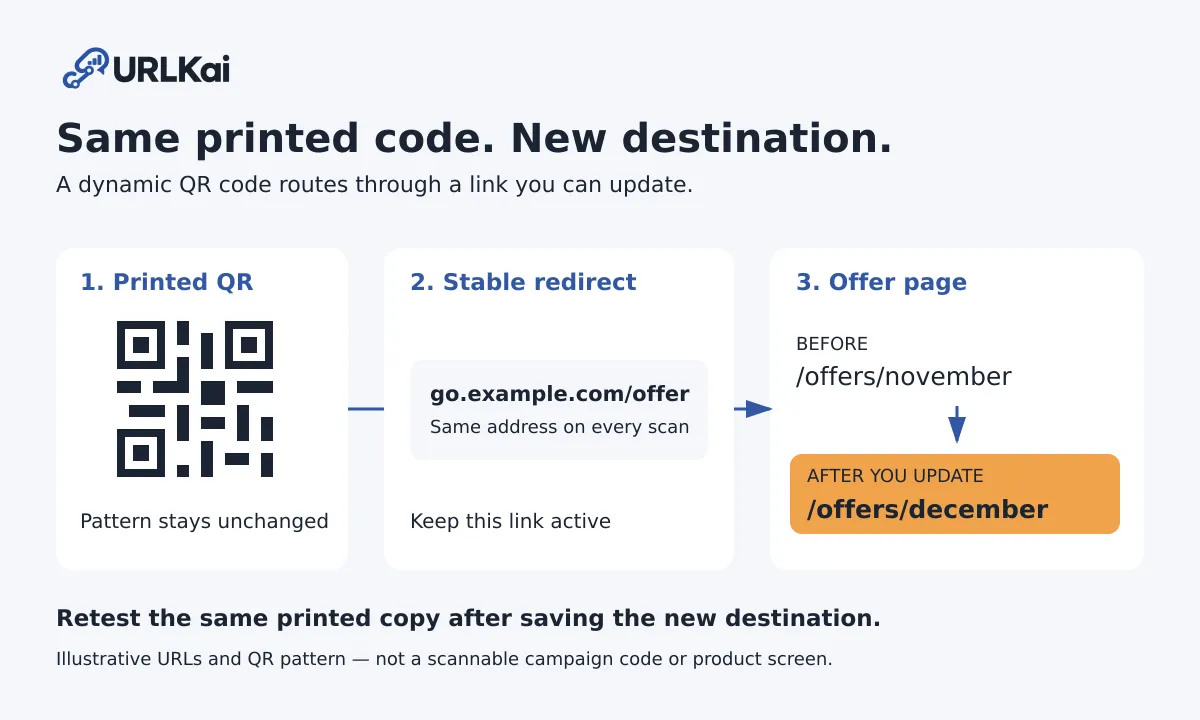
You can change a QR code’s destination without reprinting if the printed code points to an editable redirect you control, as a dynamic QR code does. Update the destination behind that redirect, save it, and scan the same printed copy to check the result. You cannot rewrite the data in an arbitrary existing QR pattern; a static code needs a different approach.
Can you change an already printed QR code?
A static QR code stores its content directly in the pattern. A dynamic QR code stores a stable redirect URL that sends visitors to a destination you can change.
For a shop’s counter display, the dynamic route is: printed QR → stable redirect → current offer page. The cover diagram shows the middle address staying the same while the offer changes from November to December. Its QR pattern and example.com addresses are illustrations, not working campaign links.
| What the printed code contains | Can you change where visitors land? | Next action |
|---|---|---|
| An editable redirect in an account you control | Yes, while that redirect remains active | Update the existing record’s destination |
| A direct URL on your own website | Often, without changing the QR pattern | Update that page or configure a redirect at the encoded URL |
| A direct URL on someone else’s website | Not unless you can control that address | Replace the printed code or cover it with a new one |
| A redirect from a service whose account you cannot access | Not until you regain control | Recover access through the original service |
A static code pointing to your own website can still be useful: you can change what the page shows, or ask your website administrator to redirect that address. That changes the website’s behavior, not the QR code’s stored data. A URL QR code still needs an internet connection to open a website, even though a phone can read the pattern itself offline.
The same redirect-versus-direct-URL distinction appears in Uniqode’s explanation of changing a QR destination. Creating a new dynamic code does not make an unrelated old printed code editable.
How to change a QR code destination for an in-store promotion
Suppose a small shop wants one counter sign to open its current monthly offer. The following addresses are placeholders:
- Stable redirect encoded in the QR:
https://go.example.com/offer - First destination:
https://shop.example.com/offers/november - Next destination:
https://shop.example.com/offers/december
The goal is to change only the destination behind go.example.com/offer, not the address encoded in the printed pattern. These are workflow steps, not instructions for particular dashboard buttons.
Preparing an in-store promotion? Try the ready-made weekend promotion sample for email, Instagram and a printed counter card. Replace the example destination with your offer page, review the tags, then generate and copy your channel set. These are tagged destinations, not QR codes; use the printed-QR destination in your service’s dynamic workflow and test it before printing. The builder includes a link back to this guide.
1. Create a dynamic code for the first offer
Open the November offer page on a phone. Confirm that the offer, dates and any redemption conditions are clear, and that customers do not need an unexpected login.
In your QR service, create a dynamic URL code or a QR code tied to an editable short link. Set the November page as its destination. Keep the saved record and its stable redirect address together in a simple campaign note.
Do not accidentally use a static URL generator that encodes the November page directly. If you also need a readable online campaign link, see our separate guide to creating a custom short link and tracking campaign clicks.
2. Test the code and prove that it is editable
Scan the downloaded QR image and confirm the final page. Before ordering a print run, test a destination change on this same saved record: point it to another page you control, save, and scan the same image again. Then restore the November destination and retest.
This catches the costly mistake of assuming a code is dynamic because the generator advertised dynamic codes. If you cannot find an editable destination or the same code keeps opening the old page, resolve that before printing.
3. Print one sample before the full run
Print a sample at the intended size, with strong contrast and an uncluttered margin around the code. Scan it in the counter display’s actual position, under the lighting customers will use. Try another phone if available.
Keep the surrounding wording reusable. “Scan for this month’s offer” can remain accurate after an update; “November offer ends November 30” cannot. An editable QR destination does not update the text already printed beside it.
Once the sample works, use that same QR artwork for the print run. Keep a physical sample for later testing.
4. Update the existing record when the offer changes
Publish and check the December page first. Then locate the record for the code already on the counter, replace its destination with the December URL, and save. Do not create a replacement QR record or change the stable short URL’s domain or path.
Record the old destination, new destination and change time. If the QR and an online short link use the same redirect, both will follow the new destination. Decide whether that is appropriate for old emails or social posts before changing a shared link; separate redirects are better when those placements must keep different offers.
5. Retest the same printed copy
Scan the physical sample after saving, and open the result in a fresh browser session. Check the final URL, offer, dates and redemption process. Scan the code actually on display too, so you catch an older sign or a different QR record.
If the wrong page appears, check the saved destination and whether you edited the correct record. An already open browser tab can still show the previous page; reopening it is not the same as rescanning the QR. If a fresh scan still fails, check the service’s account and link status before leaving the promotion live.
What can still break an editable QR campaign?
Changing the destination does not remove the need to maintain the redirect and the page behind it. Before each offer launch, check:
- Access and continuity: keep the QR-service account accessible and the redirect active. If it uses your own domain, keep that domain registered and correctly connected.
- Plan limits: confirm the account supports the intended dynamic workflow and has enough usage capacity for the campaign.
- The destination: a valid redirect can still lead to a removed page, expired offer or broken checkout.
- Printed copies: use a placement list so you know which signs share the same code and will change together.
If you cannot recover control of an old code’s destination, replace the sign or fully cover the old QR with a tested new label. Leaving two competing codes visible makes the intended action unclear.
Start an editable QR campaign with URLKai
URLKai’s QR Codes page describes dynamic QR codes tied to short links, with destinations that can be updated after printing. Its public generator starts in Static mode; choose the dynamic workflow rather than assuming every generated code is editable.
Get started free. URLKai offers a free-forever plan with no credit card required. The current pricing page lists five QR codes on Free, but does not separately label dynamic-code eligibility; confirm the dynamic workflow and applicable limits in your account before committing to a print run.
Start with one counter sign: create the code, prove the destination can change, print a sample, and keep that sample for the next offer’s retest.